If the App Store shows similar results or someone sends you a product link, first check the full developer name and official icon, then verify the app ID in the URL. Already installed an app but unsure which one it is? Use the verified product page to check. On Mac, Windows, Android, or Linux, choose the download for your device; the App Store app ID does not identify packages for other platforms.
Similar App Store Results: Verify the Product Page in Three Steps
On your iPhone or iPad, open Search in the App Store and enter Shadowrocket. Tap the app name to open its product page; don't tap the Get button beside a search result. Search ranking, whether the name includes “Shadowrocket,” and a rocket icon are not enough to confirm an app's identity.
-
Check the Developer
Look near the product page title and verify the full developer name, Shadow Launch Technology Limited. Don't rely on seeing only “Shadow” at the start. On the web product page, you can also cross-check the Seller field in the Information section. A developer name written in the app description or screenshots is not a substitute for the name listed by the App Store.
-
Compare the Official Icon
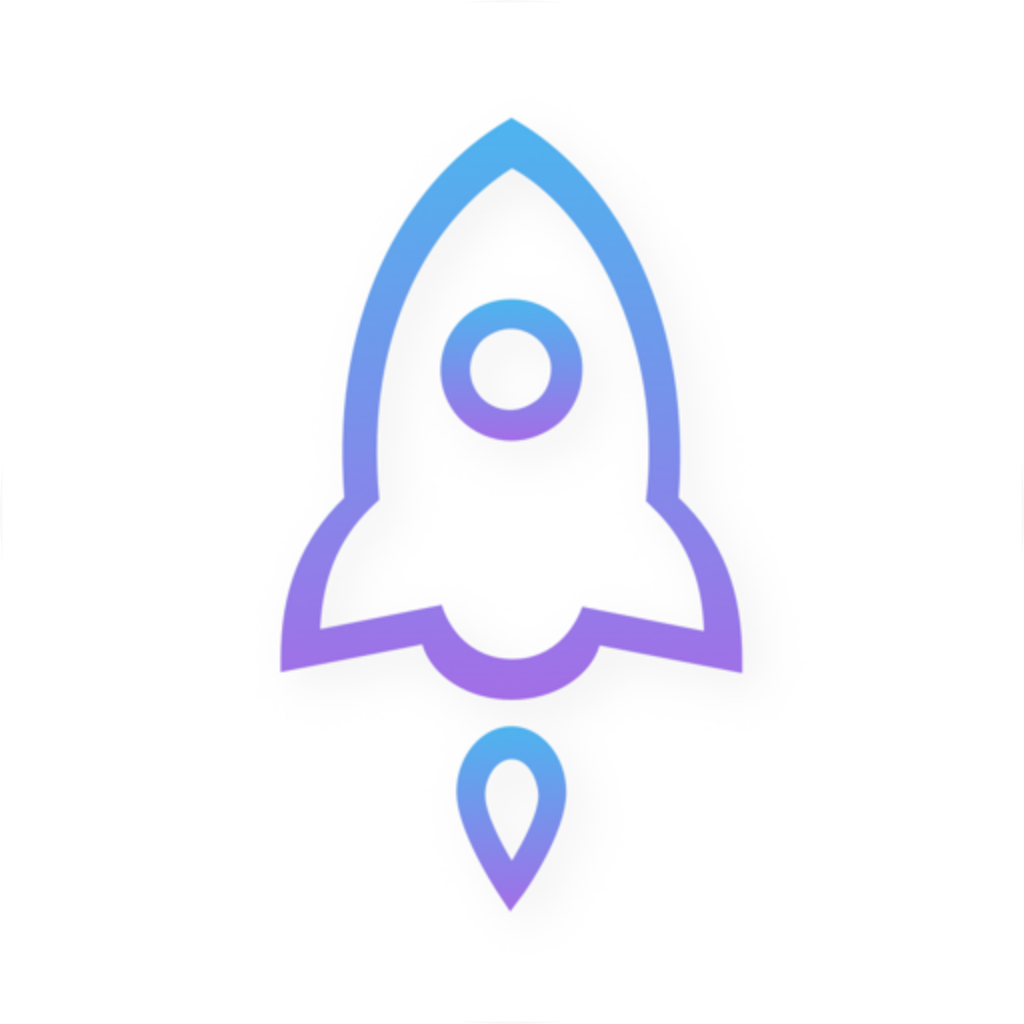
Check the icon beside the product page title: the official icon is a rocket outlined in blue and purple on a white background. Use the reference image below; system-tinted icons on your device's Home Screen may look different. Even if an icon appears identical, continue by checking the app ID.
-
Check the App ID
Tap Share on the product page. If the share sheet offers Copy Link, copy the link and paste it into your browser's address bar. Confirm the host is
apps.apple.comand the final part of the path isid932747118. If you're already viewing the product page in a browser, check the address bar directly. Make sure the number is in the product path, not in a query parameter or page text.
Where to Find the App ID: Region Code, Product Path, and Parameters
The product link used by this site's App Store button has the host apps.apple.com and the path /us/app/shadowrocket/id932747118. Here, us is the storefront region code, shadowrocket is the name segment, and id932747118 is the product identifier to verify. The region code does not have to match this example exactly. If the URL contains ?, everything after it is a query parameter and does not count for this check.
Can't Read the Link? Open It from the Download Page
If you get a short link, a share card that shows only a title, or a page that doesn't reveal the full URL, there's no need to guess between search results. Close the page, open the iPhone / iPad App Store link from the download page, then verify the developer and app ID on the product page that opens.
Already Installed? Check It Against the Verified Product Page
Seeing an icon named Shadowrocket on your device only tells you what name the icon displays; it doesn't identify the App Store listing. First complete all three checks, then look at the button on the verified product page.
- If it says Open: Tap Open on that product page and confirm which app launches. If your Home Screen has multiple similar icons, don't identify the app by its position or name.
- If it shows the redownload icon: Download the app again from the verified product page. If you believe you purchased it before but the page shows a purchase button, first make sure the App Store is signed in with the original purchasing account, then check that account's Purchase History. You don't need to pay again just to verify the app.
- If you installed the wrong app and imported data: Stop using it. Before deleting it, check whether it contains any of your own configurations that you need to keep. If you imported a subscription link containing an access token, revoke or replace that link in your own service account. If your device has a VPN configuration associated with the mistakenly installed app, review and remove that entry under Settings → General → VPN & Device Management → VPN. Don't remove configurations managed by your work or school.
Mac, Windows, Android, and Linux: Choose the Right Download
App ID 932747118 identifies an App Store product listing; it is not a universal identifier for packages on other platforms. Get Shadowrocket for iPhone / iPad from the App Store for a one-time payment of $2.99; check the App Store page for system requirements. The Mac (Apple silicon / Intel), Windows, Android, and Linux versions are free. Choose your platform on this site's download page.
- Mac: If you're not sure which processor your Mac has, open About This Mac from the Apple menu. If Chip shows Apple silicon, choose the Apple silicon version. If Processor shows Intel, choose the Intel version.
- Windows and Android: Choose the matching platform card on the download page. Don't assume a file forwarded by someone else is the version offered here just because its name or icon matches, or a reposted page shows the same app ID.
- Linux: Choose a package type on the download page that matches your distribution's installation method. Debian / Ubuntu systems typically use DEB, while Fedora uses RPM. If you want to use AppImage, first check the download page for instructions on how to run it.
After Verifying the App: First Connection and On Demand
The App Store details verify the app's identity; they don't confirm that an imported configuration or server works. For your first setup, import only data you already have. On iPhone / iPad, for example, first check Settings → On Demand to see whether automatic connection is enabled, then choose how to run your first test.
Turn Off On Demand
RecommendedManually turn on the connection in Home, then use the same network to visit a page that normally loads for you. Check that it loads correctly, then disconnect manually. This keeps the test separate from any automatically triggered connection.
Best for: first-time setup, a newly changed configuration, or troubleshooting a connection failure
Turn On On Demand
Enable it only after a manual test works. Once enabled, the system starts a connection when your configured conditions are met. To test automatic connections, meet those conditions and then check the status in Home.
Best for: users who've verified a manual connection and specifically need connection automation
Common Questions About Developer, Region, and System Requirements
The app name matches exactly. Why check the developer?
The displayed name alone doesn't verify an app's identity. Find the full developer name on the App Store product page, then check the app ID in the link. If the name matches but the developer or ID doesn't, don't purchase, install, or import data from that listing.
What if the URL doesn't say us, or the app isn't available in my region?
A different region code doesn't mean it's a different app. First check the host and app ID in the path, then see whether the current storefront lets you get the app. If the verified listing says it's unavailable, follow the App Store's notice; don't use a similarly named search result instead.
All three checks pass. Why can't I install it on my iPad?
App identity and device compatibility are separate issues. Check Compatibility near the bottom of the product page. Then open Settings → General → About on your device and compare the system information. For iPhone / iPad, check the App Store page for system requirements.
A VPN configuration prompt appears the first time I connect. Does that prove the app is genuine?
No. The prompt requests permission to configure the system; it does not verify an App Store listing. Complete the App Store checks, open the correct app, and start a connection before responding to the permission request. If the prompt appears when you haven't started a connection, cancel it and check what triggered the request.